Model Configurations
Model configurations register AI models (like GPT-4, Claude, or custom models) for use in prompts, scores, experiments, and evaluations. Each configuration includes the provider, model name, API keys, and other settings needed to make calls.
What you see
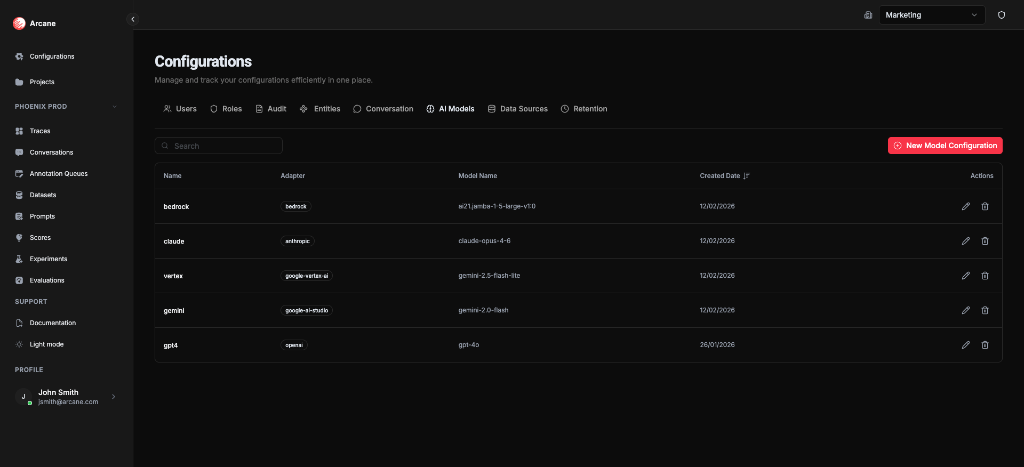
The AI Models tab shows a table of all registered model configurations:
| Column | Description |
|---|---|
| Name | Friendly name for this configuration (e.g., "GPT-4 Production") |
| Adapter | The provider or adapter (OpenAI, Anthropic, Google Vertex, Bedrock, etc.) |
| Model Name | The specific model identifier (e.g., "gpt-4", "claude-3-opus") |
| Created Date | When the configuration was created |
| Actions | Edit and Delete buttons |
Creating a model configuration
Click New Model Configuration to register a model for use in experiments and evaluations.
Common fields
All model configurations require these fields:
| Field | Required | Description |
|---|---|---|
| Name | Yes | A friendly name to identify this configuration (e.g., "GPT-4 Production", "Claude Staging") |
| Adapter | Yes | Choose the provider: OpenAI, Anthropic, Azure OpenAI, AWS Bedrock, Google Vertex AI, or Google AI Studio |
| Model Name | Yes | The specific model identifier (e.g., "gpt-4", "claude-3-opus-20240229", "gemini-pro") |
Tip: Use descriptive names that indicate the environment (e.g., "Production", "Staging") or purpose. This makes it easier to choose the right model when creating experiments.
Adapter configurations
Each adapter has specific fields. Choose an adapter to see its requirements:
OpenAI
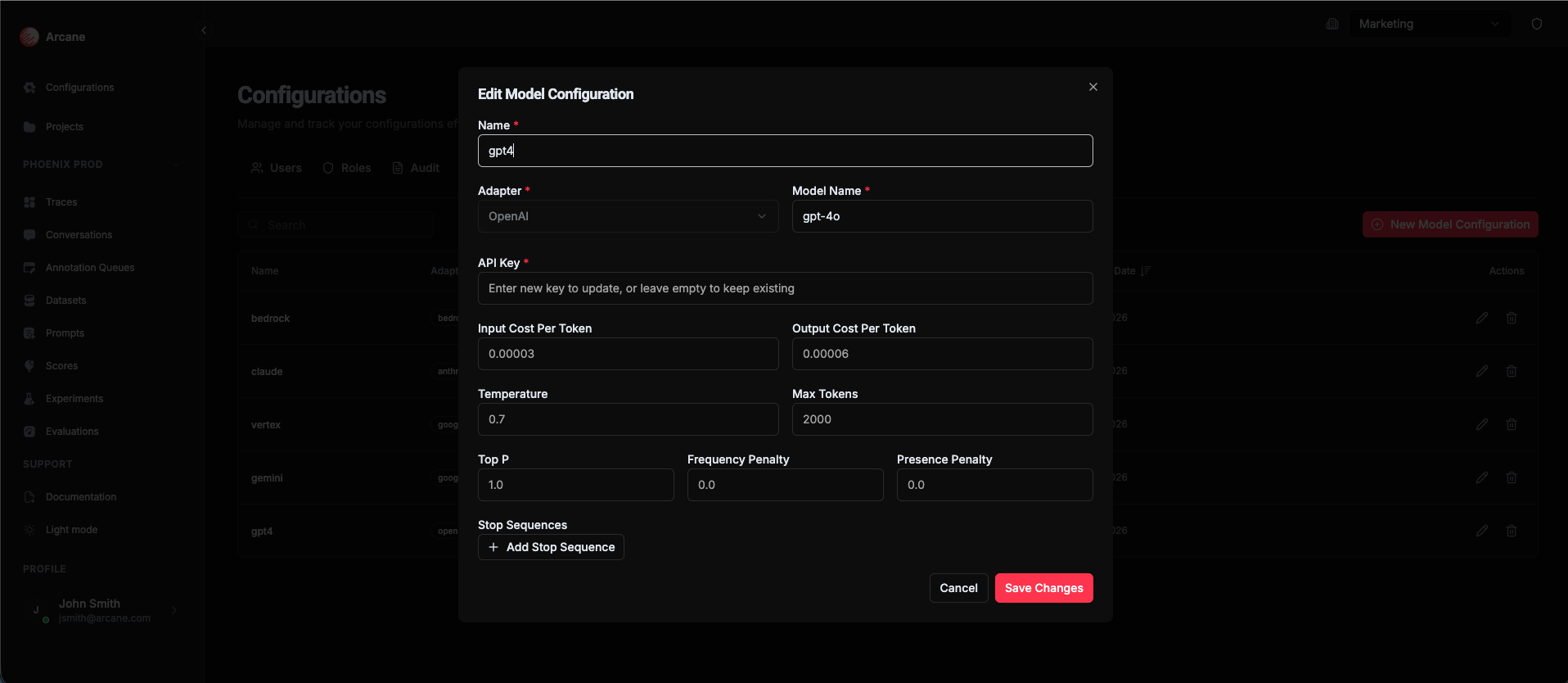
| Field | Required | Description |
|---|---|---|
| API Key | Yes | Your OpenAI API key (starts with sk-) |
Example model names: gpt-4, gpt-4-turbo, gpt-3.5-turbo, o1-preview
Anthropic
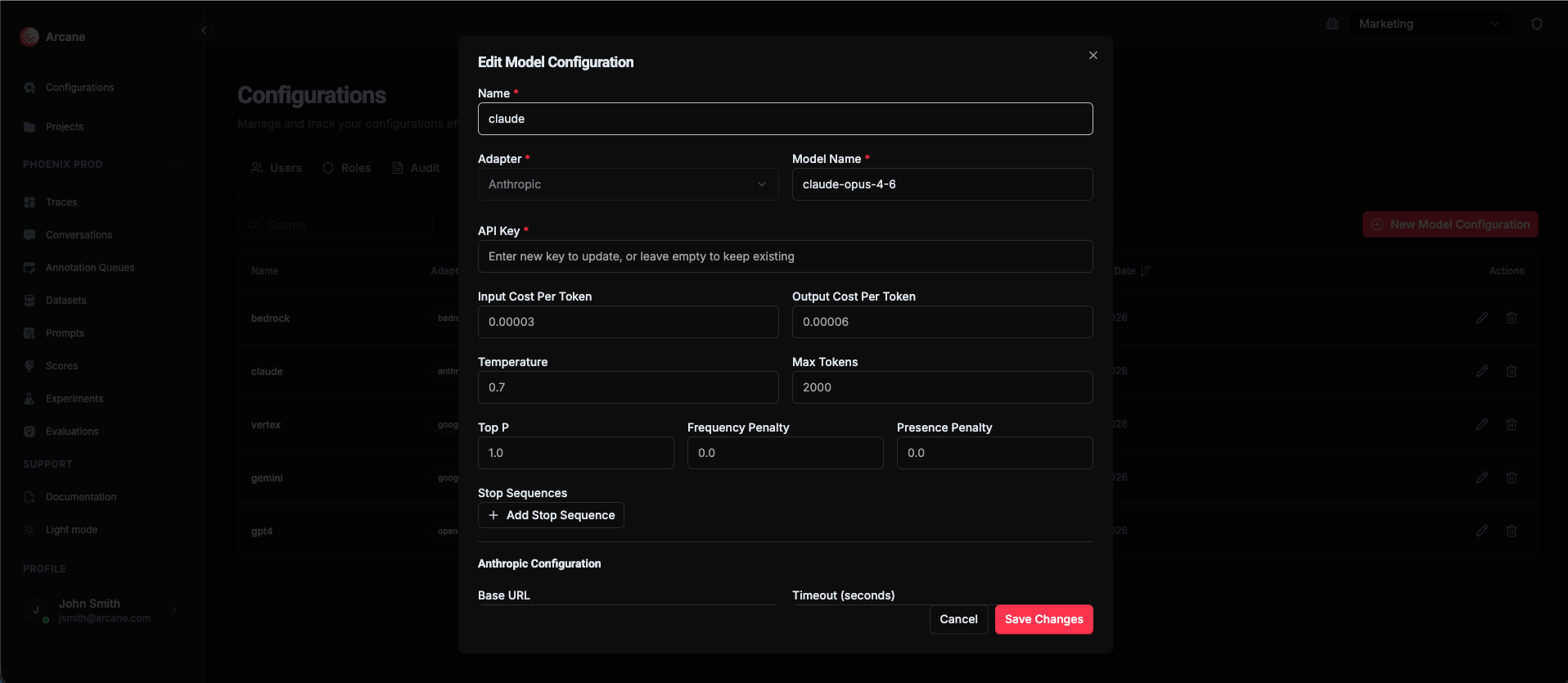
| Field | Required | Description |
|---|---|---|
| API Key | Yes | Your Anthropic API key |
| Base URL | No | Custom API endpoint (default: https://api.anthropic.com) |
| Timeout (seconds) | No | Request timeout in seconds (default: 240) |
Example model names: claude-3-opus-20240229, claude-3-sonnet-20240229, claude-3-haiku-20240307
Azure OpenAI
| Field | Required | Description |
|---|---|---|
| API Key | Yes | Your Azure OpenAI API key |
| Endpoint | Yes | Your Azure OpenAI endpoint URL (e.g., https://your-resource.openai.azure.com) |
| API Version | No | API version (e.g., 2024-02-15-preview) |
| Deployment Name | No | The deployment name for your model |
Example model names: gpt-4, gpt-35-turbo
AWS Bedrock
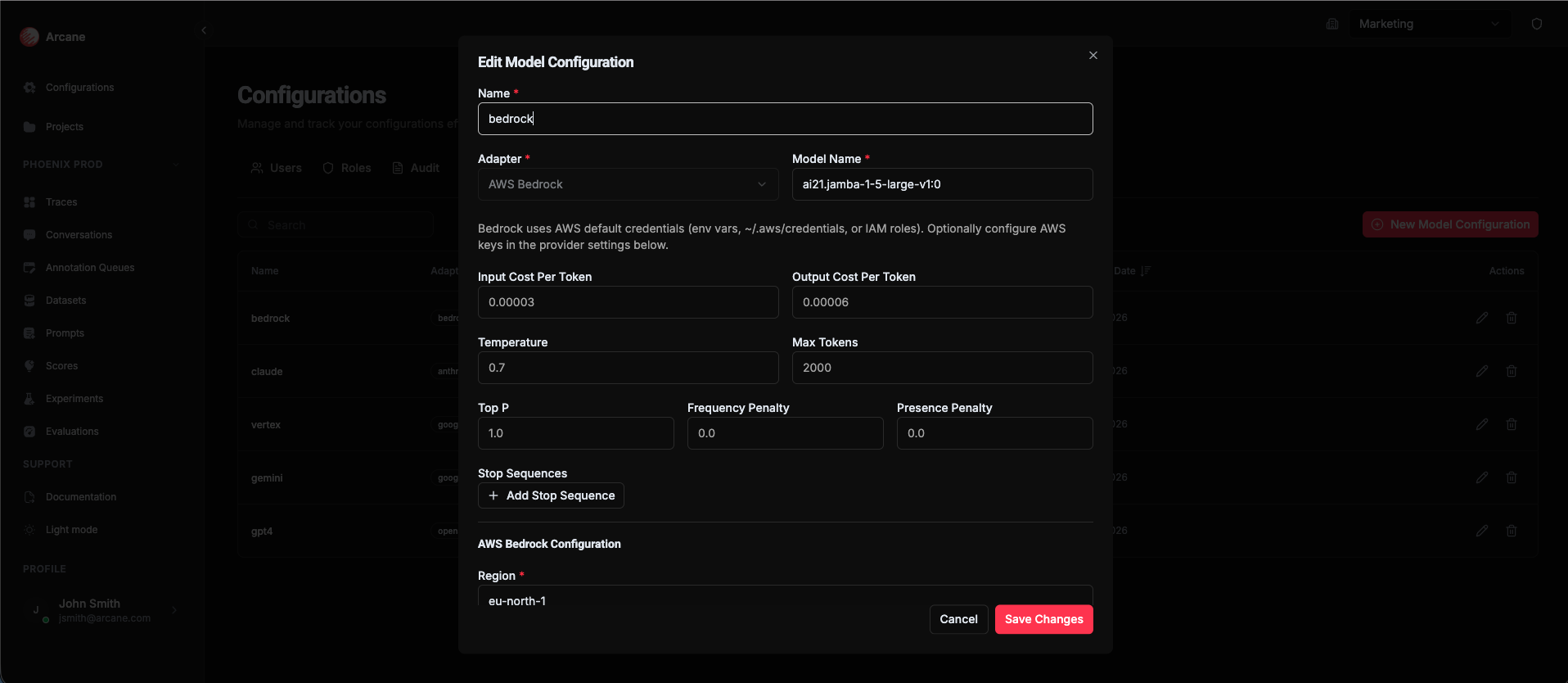
| Field | Required | Description |
|---|---|---|
| API Key | No | Optional placeholder (not used for authentication) |
| Region | Yes | AWS region where Bedrock is available (e.g., us-east-1, us-west-2) |
| Endpoint URL | No | Custom endpoint URL (default: https://bedrock-runtime.{region}.amazonaws.com) |
| AWS Access Key ID | Yes | AWS access key ID (required for the Python worker) |
| AWS Secret Access Key | Yes | AWS secret access key (required for the Python worker) |
Example model names: anthropic.claude-3-opus-20240229-v1:0, anthropic.claude-3-sonnet-20240229-v1:0, amazon.titan-text-premier-v1:0
Tip: Make sure your AWS Access Key ID and Secret Access Key have permissions to access Bedrock in the specified region.
Google Vertex AI
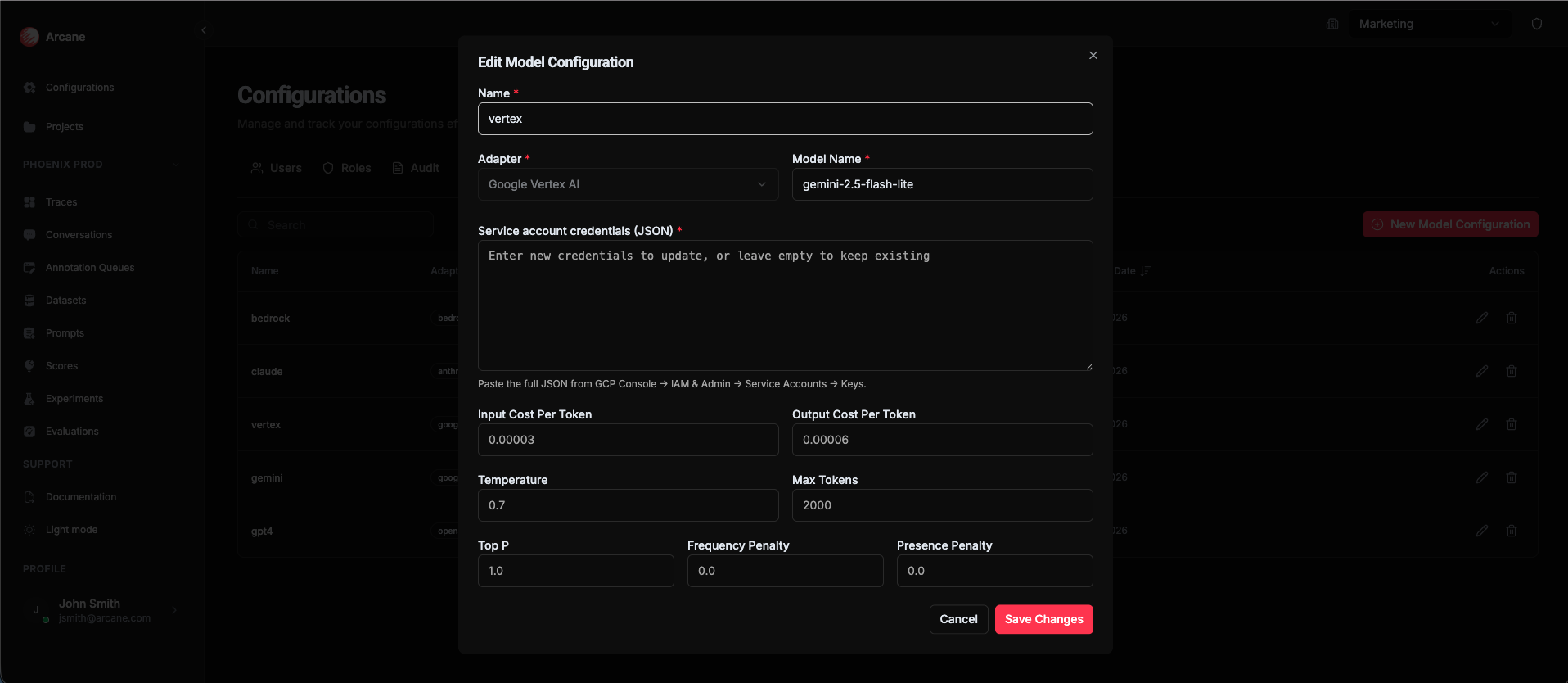
| Field | Required | Description |
|---|---|---|
| Service Account Credentials (JSON) | Yes | Full JSON credentials from GCP Console → IAM & Admin → Service Accounts → Keys. Paste the entire JSON object. |
| Project | No | GCP project ID (can be extracted from credentials JSON) |
| Location | No | GCP region/location (e.g., us-central1, europe-west1) |
Example model names: gemini-pro, gemini-pro-vision, text-bison@001
Tip: To get your service account credentials:
- Go to GCP Console → IAM & Admin → Service Accounts
- Select or create a service account
- Go to Keys → Add Key → Create new key → JSON
- Copy the entire JSON and paste it into the credentials field
Google AI Studio
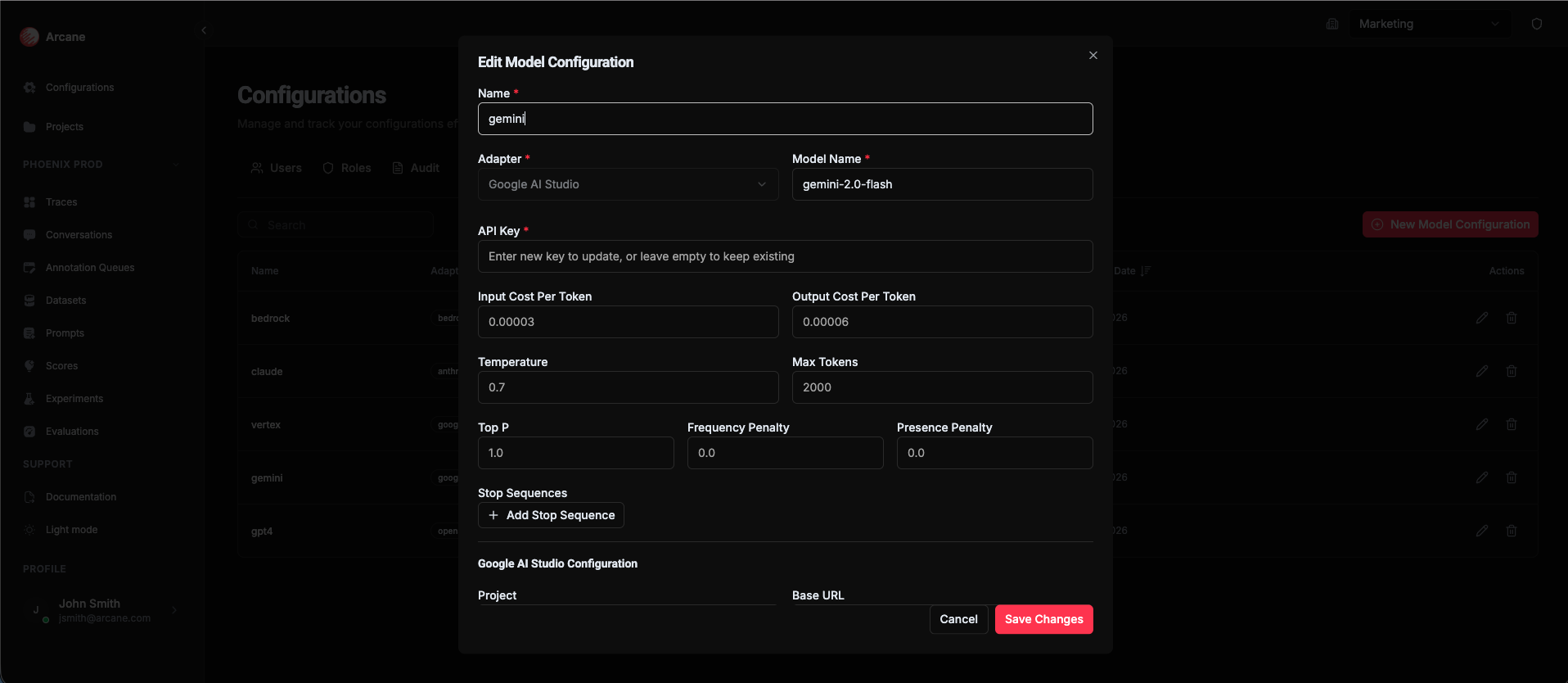
| Field | Required | Description |
|---|---|---|
| API Key | Yes | Your Google AI Studio API key |
| Project | No | GCP project ID |
| Base URL | No | Custom API endpoint (default: https://generativelanguage.googleapis.com) |
Example model names: gemini-pro, gemini-pro-vision
Editing a model configuration
Click Edit on a model configuration to update its settings, API key, or other parameters.
Note: Changing a model configuration affects all experiments and evaluations that use it. Make sure your changes are intentional.
Deleting a model configuration
Click Delete on a model configuration to remove it. This prevents it from being used in new experiments, but doesn't affect existing experiments or evaluations.
Warning: Make sure no active experiments or evaluations depend on a configuration before deleting it.
When to use
- Before creating experiments — Register models you'll use in experiments
- Multiple environments — Create separate configurations for production and staging models
- Different models — Register all the models you want to compare in evaluations
- API key management — Use different configurations with different API keys for security
Tips
- Test configurations — Verify API keys work before using configurations in experiments
- Use clear names — Name configurations so it's obvious which model and environment they represent
- Secure API keys — API keys are stored securely, but only grant access to trusted team members
- One per model/environment — Create separate configurations for different models or environments
- AWS Bedrock — Use IAM roles when possible instead of storing AWS credentials
Related
- Prompts, Models & Scores — Learn how models are used in experiments
- Experiments — Use model configurations in experiments
- Organisation Configuration — Overview of all organization configuration options